Pots & Gear
Bristol Maps keeps track of your crab pots and the strings they belong to. Tap one button as a pot goes over the side and it is marked at the boat with the sounder depth. Pots live in named strings, each drawn on the chart in its own colour, and the line you steamed while setting is recorded as the string’s track. When you come back to haul, a pick counts what came out of each pot and writes itself into your log. All of it backs up to your account and stays in sync between your phone, your tablet and the desktop app.
This section is in four parts:
- This page – how the pieces fit together, and your first string from start to finish
- Strings & Pots – the Gear Management page, string and pot details, moving a pot, set-line tracks, and export
- Pick Mode – hauling a string with a count per pot, and the next-pot display
- Sync & Sharing – your other devices, your fleet group, and drag boats
Every setting mentioned below is listed on Settings: Pot & Gear Tracking.
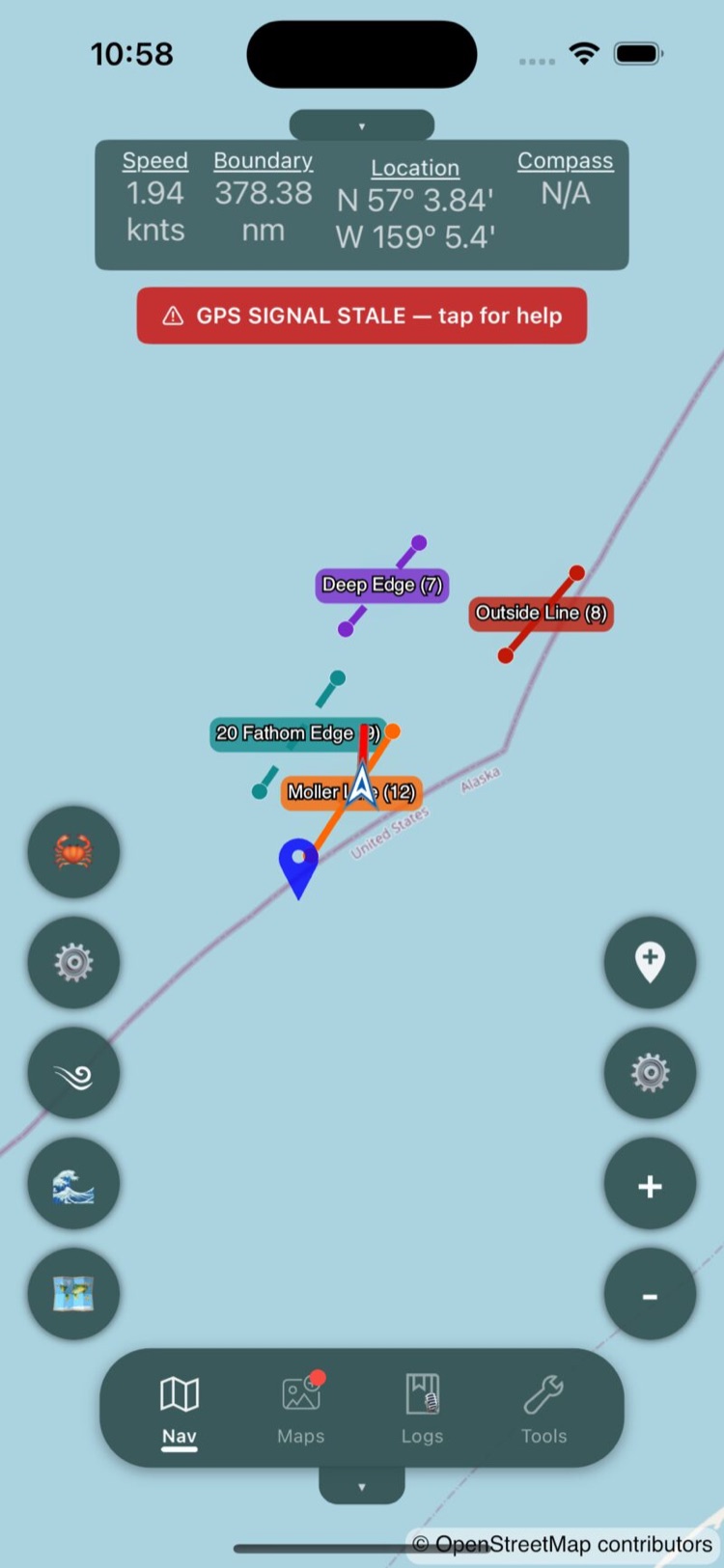
How it fits together
- Pot
- One piece of gear on the bottom. A pot has a name, a gear type, an icon, a buoy or tag number, the time it was set, the depth, and a position.
- String
- A named line of pots. Every pot belongs to one string, and the string sets the colour, gear type and default icon for its pots. Strings are what you share, pick, and see labelled on the chart.
- String track
- The set line – the path the boat took while you dropped the string. It is recorded automatically and drawn in the string’s colour. It is separate from the vessel track line.
- Pick
- One pass down a string hauling pots, with a count of what came out of each one. Every pick is also a log entry. See Pick Mode.
Quick start: your first string
- Turn on Display Gear Points (in Settings > Pot & Gear Tracking, or in the map’s filter menu under Pot Tracking). The crab (🦀) and gear (⚙️) buttons appear on the left side of the map.
- As the first pot goes over, tap 🦀. The app asks “Enter string/line name (optional):” with “Main Line” filled in. Type the name of the string you are setting.
- The pot is marked at the boat and named after the time, for example “Pot 14:32”. Its set time is now. If a sounder is connected, the depth is recorded too, and the confirmation reads “Added Pot 14:32 to Main Line · 42.3 ft”. Track recording starts on its own.
- Tap 🦀 at each pot down the string.
- After the last pot, tap ⚙️ and choose “⏸ Stop Tracking” – or leave it, and recording stops by itself after Auto-Stop Tracking (minutes) (60 by default) without movement.
- Double-tap any pot on the chart to open its details and add the buoy number. See Pot details.
- When you come back to haul, open the string, go to the Picks tab and tap Start Pick. See Pick Mode.
The sounder depth is free
With a depth feed connected over NMEA, every pot you drop with 🦀 records the depth at that moment. Nothing to type. See NMEA & GPS Setup and Depth Sounder Setup.
Dropping pots
The crab button
The 🦀 button drops a pot at the vessel’s position on the string you are working. It is only shown while Display Gear Points is on.
- The pot is named after the time it went in, for example “Pot 14:32”, and its set time is that moment.
- The sounder depth is recorded when a live depth reading is less than 60 seconds old. Without a sounder the depth is left blank, and you can add it later on the pot’s page.
- New pots take the string’s colour, gear type and icon.
Anywhere on the chart
Long-press the chart to open the Action popup and choose Drop Pot. The pot is placed at that spot on the string you are working.
Chart drops do not record depth
A pot dropped on the chart gets no sounder depth and does not extend the string track, because the boat is not there. Open the pot afterwards and tap Use sounder, or type the depth in.
Hands-free: Siri and shortcuts
On iOS, Bristol Maps adds a Drop Crab Pot shortcut. Say “Drop a pot in Bristol Maps”, or “Drop a pot with buoy 12 in Bristol Maps” to record the buoy number as well. Siri answers with what was done, for example “Pot dropped on Main Line with buoy 12 in 42 feet”. There are also Start Gear Trackline and Stop Gear Trackline shortcuts for the string track. If you would rather say “start my trackline” and have it mean the string, turn on Siri ‘Trackline’ Means Gear Track in Settings (“Voice commands like “start my trackline” control the active string’s gear track instead of the vessel track line.”).
On Android, long-press the app icon for the Drop Pot home-screen shortcut (“Drop Crab Pot at Current Location”).
A pot dropped this way, with the app closed, goes on the string you were last working, or on a string called “Main” if there is none. It records the sounder depth like a 🦀 drop.
Starting a new string
There are three ways to start a string. They all end up in the same place.
- Tap 🦀 with no string active. The name prompt appears, pre-filled with “Main Line”. The pot goes on that string and tracking starts.
- Map filter menu > Pot Tracking > New String. Type a name, then answer “Do you want to start tracking ‘Deep Edge’ now?” and “Would you like to add the first pot at your current location?”. That first pot is named “Deep Edge - Pot 1”.
- ⚙️ > Create New String, or New String on the Gear Management page, which also asks for the gear type.
One string per line of gear, named the way you talk about it
The name is what you will see on the chart label, in the pick page header and in the log. It is also how the cloud matches a string across your devices – create “Deep Edge” on the phone and the tablet and they merge into one. See Sync & Sharing.
Where the controls are
| Control | What it holds |
|---|---|
| 🦀 (map, left side) | Drop a pot at the boat |
| ⚙️ (map, left side) | The Gear Options sheet: Create New String, ▶ Start Tracking / ⏸ Stop Tracking, ➕ New Track, 📋 Manage Gear |
| Map filter menu > Pot Tracking | Switches for Display Gear Points, Show String Labels, Show Track Lines and Background Pot Tracking, plus Manage Gear, New String and Manage String Tracking |
| Gear Management page | Every string and pot, search, export, and the string and pot detail pages. See Strings & Pots |
| Settings > Pot & Gear Tracking | Display, tracking, pick mode, cloud backup and dragger sharing. See the settings reference |
Manage String Tracking is the older per-string sheet. Everything on it is also on the string’s own page; it is described briefly under String tracks.
On the chart
Each pot is a teardrop marker in its string’s colour with the gear icon in white in its head. Tap a pot for its callout: the pot’s name, then “String: Moller Line” and “Type: Crab Pot”. A pot from a string someone shared with you adds “(Shared gear)”.
- Show String Labels keeps every pot’s callout open, so the chart is labelled without tapping.
- Double-tap a pot marker or its callout to open the pot’s page.
- When a string’s pots would overlap on screen, the app draws one line through them instead, with a dot at each end and the label “Moller Line (12)” – the string name and its pot count. Zoom in and the individual pots come back. Tap the line or its label to open Gear Management filtered to that string. Collapse Crowded Strings turns this on and off, and Collapse Sensitivity (Much sooner, Sooner, Normal, Later, Much later) sets how early it happens.
- Gear Icon Size scales the markers.
- With Show String Track Lines on, each string’s set line is drawn in the string’s colour. See String tracks.
On the desktop app
The desktop app has no crab button. Pots are dropped from the GEAR STRINGS panel in the map sidebar: pick the string in the drop-down, then + Add Pot. With a GPS fix the pot is placed at the vessel and records the sounder depth; without one it goes at the centre of the chart. The panel also shows whether tracking is active, with Start Tracking and Stop Tracking buttons, + New String (which starts tracking and, with a fix, drops “Pot 1” at the boat) and Manage Gear.
To place a pot somewhere else, right-click the chart and choose Add Pot to “Moller Line” Here – the item names the string selected in the panel.
There is no Siri or home-screen shortcut on desktop, and no background recording: the app has to be running to track a string. See Bristol Maps for Desktop.