Skip to content

Settings Reference

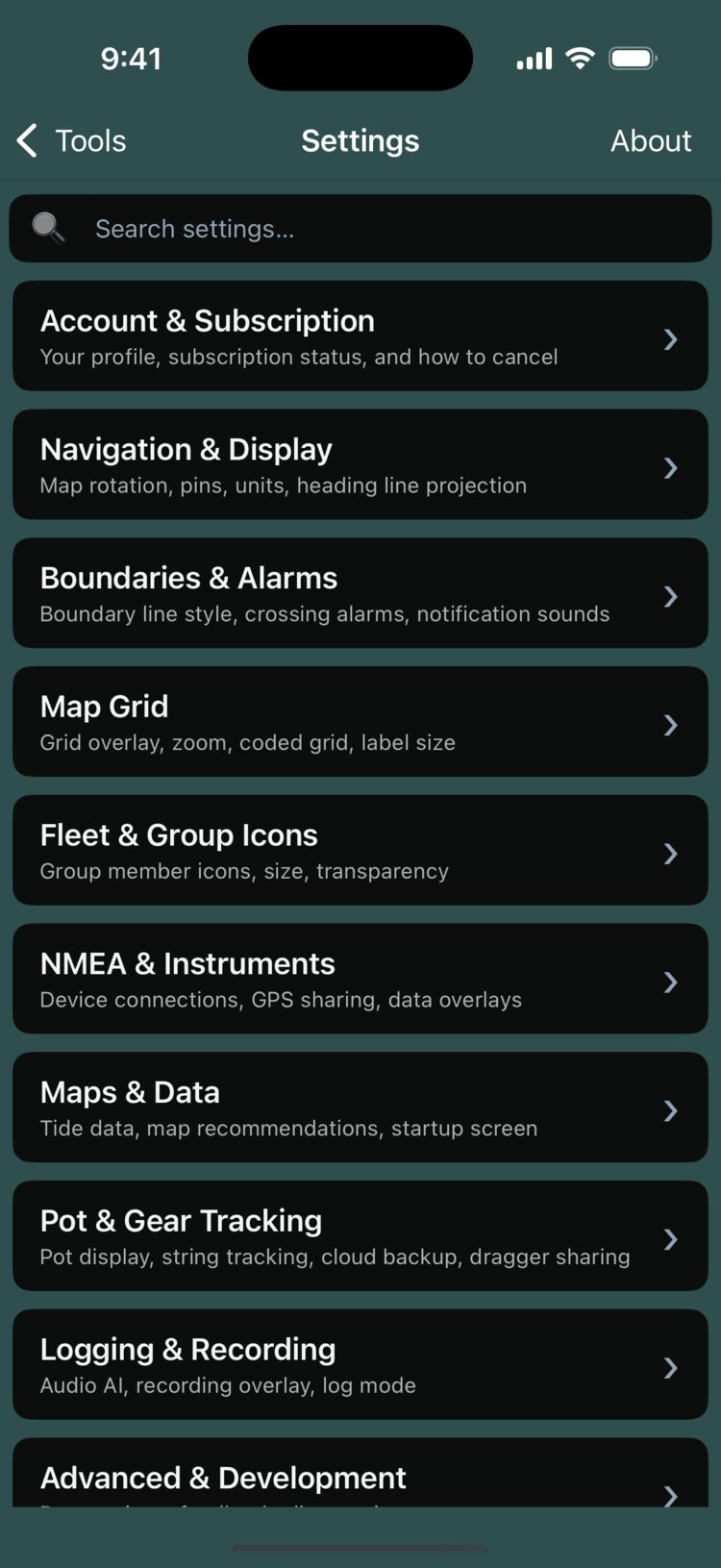
All Bristol Maps settings can be accessed from the Tools tab. This page provides a complete reference for every configurable option.

Heading Line

Controls the heading line that extends from your position on the map.

Setting Description
Heading Line Type Display mode: distance-based or time-based projection
Heading Time Frame Time period used for heading calculation
Heading Distance Distance of the heading line projection
Average Position Count Number of GPS positions averaged for smoother heading

See Map Overview for more about the heading line feature.

General navigation page display options.

Setting Description
Allow Screen Rotation Enable device rotation on the map page (requires app restart)
Don't Turn Off Display Keep the screen on while using Bristol Maps
Hide Nav Bars on Phones (Landscape) Hides navigation bars when in landscape mode on phones
Allow Multiple Map Pins Enable placing multiple pins on the map via double-tap
Pin Font Size Font size for map pin labels
Log Pin Size Scale of log entry pins on the map
Log Pin Transparency Transparency level of log entry pins
Waypoint Pin Size Scale of waypoint pins on the map
System Waypoint Max Zoom (5-12) Zoom level at which system waypoints become visible
User Waypoint Max Zoom (5-12) Zoom level at which user waypoints become visible
Location Sharing Interval How often your GPS position is broadcast to fleet (in seconds)
Use Statute Miles Toggle between statute miles and nautical miles

Boundary Lines

Display settings for fishing district boundary lines.

Setting Description
Boundary Miles to Feet Change Distance at which the display switches from miles to feet
Boundary Line Thickness Width of boundary lines on the map

Boundary Alarm

Proximity alarm settings for boundary lines.

Setting Description
Line Alarm Enable or disable the boundary proximity alarm
Line Alarm Distance Distance threshold for triggering the alarm
Audio Alarm Toggle the audible alert on or off

Track Lines

Settings for position recording.

Setting Description
Record Track Lines Enable or disable position recording
Track Line Interval How often a position point is recorded (in seconds)
Maximum Track Line Positions Maximum number of position points to retain

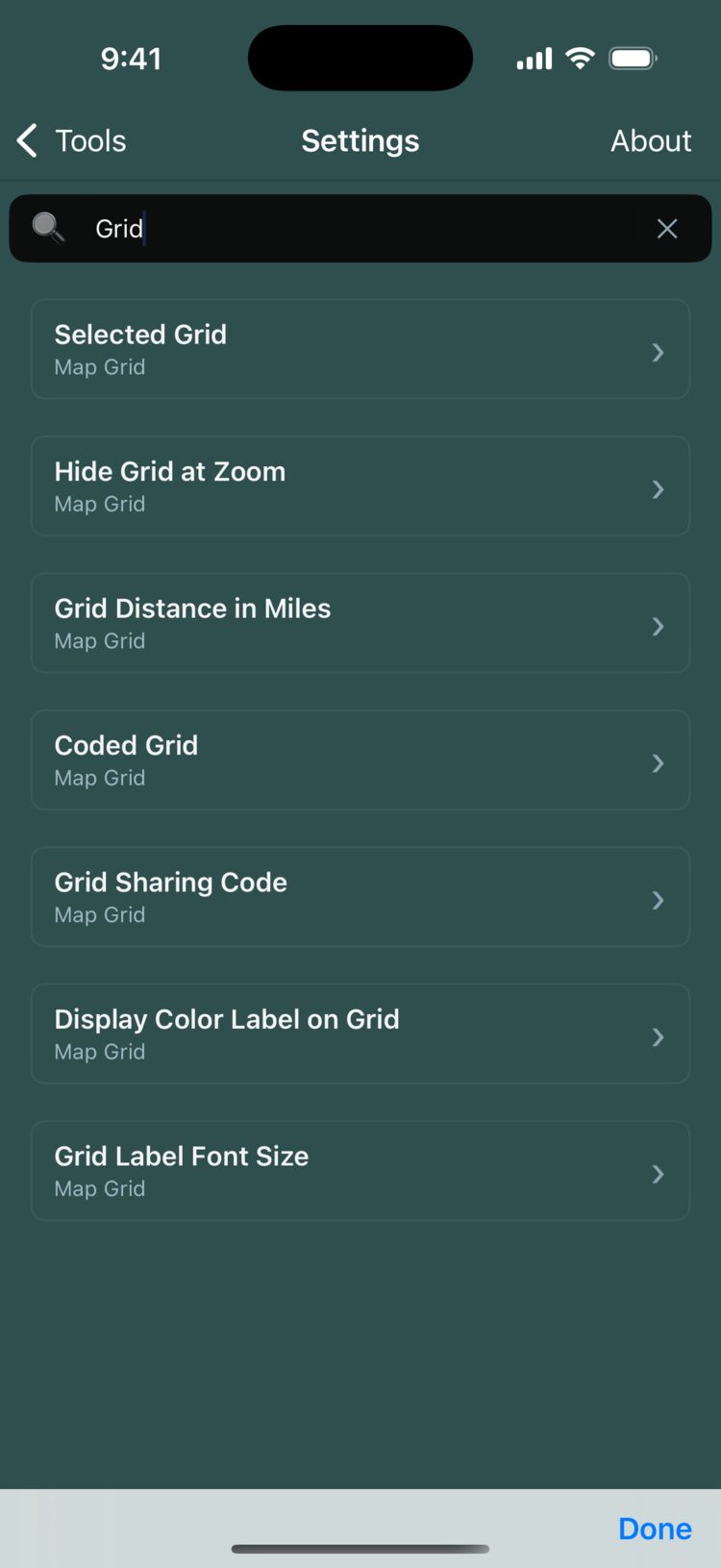
Map Grid

Configuration for the grid overlay.

Setting Description
Selected Grid Choose the district grid overlay
Hide Grid at Zoom Zoom level at which the grid automatically hides
Grid Distance in Miles Size of grid squares
Coded Grid Enable custom grid code for sharing
6 Digit Code Shareable code for a unique grid layout (first digit always 0, digits 2-3 tied to grid width)
Display Color Label on Grid Toggle colored labels on grid squares
Grid Label Font Size Size of grid labels (Small to XXL slider)

Clear Tides

Action Description
Delete Local Saved Tides Clears all cached tide data. Data will be re-downloaded the next time you view a station.

NMEA Settings

Configuration for NMEA device connections.

Setting Description
NMEA Server IP Address IP address of the NMEA network server
NMEA Server Port Port number for the NMEA server
Connect Initiate connection to the NMEA server
Depth Sounder Offset Calibration offset for depth sensor readings
Depth Data Sharing Broadcast depth sounder data to your fleet group
AIS Sharing Enable AIS vessel data sharing to fleet
Enable NMEA Location Updates Use NMEA GPS instead of device GPS

See NMEA & GPS Setup for connection instructions.

Welcome Configuration

Action Description
Re-Start Welcome Configuration Re-runs the initial setup wizard

Development

Warning

Development settings are for testing and troubleshooting only. Enable Beta Options to access debug features.

Setting Description
Beta Options Enabled Unlocks beta/testing features
Send Feedback Submit feedback to the development team