Pick Mode
In the app’s own words: “A pick records how many came out of each pot in one pass down the string, with the pot’s number, depth and soak. Every pick is also a log entry.”
The pick page is built for deck gloves – a big minus and plus per pot, one checkmark to call it hauled, and the range and bearing to the next pot at the top. On a tablet or the desktop app, the whole string is plotted over the live chart beside the list.
Not to be confused with the processor portal’s Pick Lists, which are freight jobs for a processor’s dock crew.
Starting a pick
- Open the string (Gear Management > ✏️, or tap its label on the chart).
- Go to the Picks tab.
- Tap Start Pick.
If a pick is already open on the string, the button reads Resume Pick, and tapping it asks whether to “Resume Pick” or “Finish It and Start New”. A string with no pots answers “Set some pots on this string before starting a pick.”
Starting a pick freezes the string’s pot numbers so every device agrees on them from then on – see How pots are numbered. Picks are not available on a string that a group member shared with you; they are recorded on the owner’s device.
The pick page
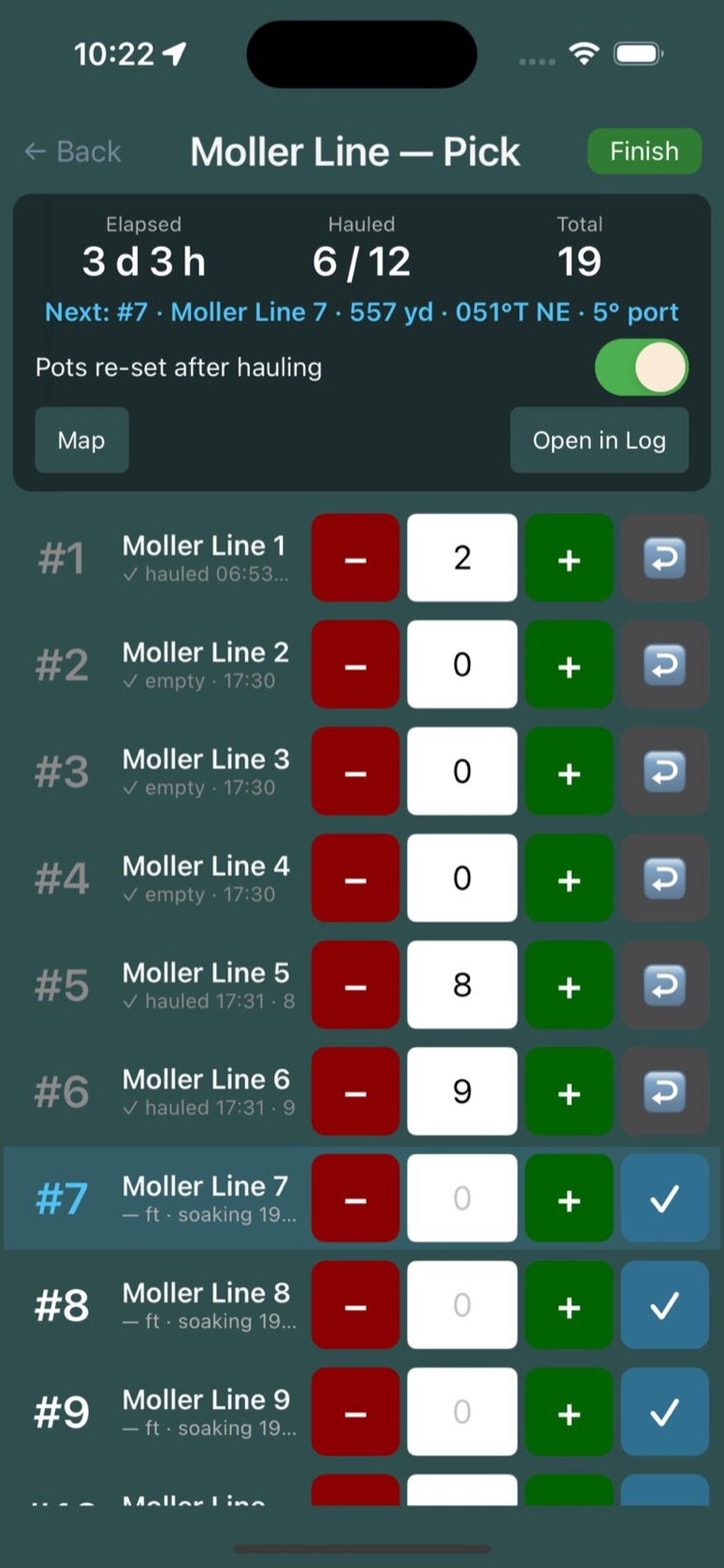
The header reads “Moller Line — Pick” with Finish on the right (it becomes Reopen once the pick is finished). Under it are three totals – Elapsed, Hauled as “6 / 12”, and Total – and the next-pot line.
The next-pot line
“Next: #7 · Moller Line 7 · 557 yd · 051°T NE · 5° port” reads, left to right: the pot’s number and name, the range, the true bearing with its compass point, and how far to turn. Ranges are in yards, switching to nautical miles past about 550 metres. The turn reads “ahead”, “astern”, or a number of degrees “stbd” or “port”.
Without a position the line says “no GPS fix”; without a course it adds “no heading”; and a fix that has stopped updating shows “fix 14 s old”.
Controls under the totals
- Pots re-set after hauling – with this on, hauling a pot restarts its soak clock from the haul time, which is what you want when pots go straight back in. Turn it off when pots are coming aboard, and each pot keeps its original set time. The switch is per pick; its starting position comes from the Keep Set Time on Haul setting.
- Map / List on phones swaps the pot list for the next-pot plot on the live chart and back. On tablets the plot has its own panel, with Hide HUD / Show HUD.
- HDG↑ / N↑ turns the plot with the vessel’s course or keeps north up.
- Open in Log jumps to the pick’s log entry.
- Notes at the bottom: “Bait, weather, anything worth remembering about this pick”.
Pot rows
Each pot is one row:
- The number, #7. Tap it to make that pot the next target – it stays the target until you haul it.
- The name, with “· Buoy 12” after it when the pot has a buoy number. Tap the name to open the pot’s page; the pick is still there when you come back.
- A detail line: “42.3 ft · soaking 2 d 3 h” before the haul, then “✓ hauled 14:32 · 6 · 42.3 ft” or, for a blank, “✓ empty · 14:32”.
- The controls: −, the count box, +, and a ✓ haul button that turns into ↩ once the pot is hauled.
Hauling a pot
- Tap + as the pot comes up. The first tap hauls it with a count of 1.
- Keep tapping, or tap the count box and type the number. Typing a count hauls the pot too.
- If the pot came up empty, tap ✓ with the box blank. It is recorded as “✓ empty”.
- Made a mistake? Tap ↩. If the pot had a count, the app checks: “Put pot #7 back in the pending list and drop its count of 6?”.
The depth recorded on the haul comes from the sounder when the boat is within 150 metres of the pot’s position; otherwise the pot’s stored depth is used. A pot that never had a depth picks one up from the sounder at the haul.
Count first, tap once
Count as the pot comes over the rail, then tap + that many times or type the number once. There is nothing else to press per pot – the count is the haul.
The heads-up plot (HUD)
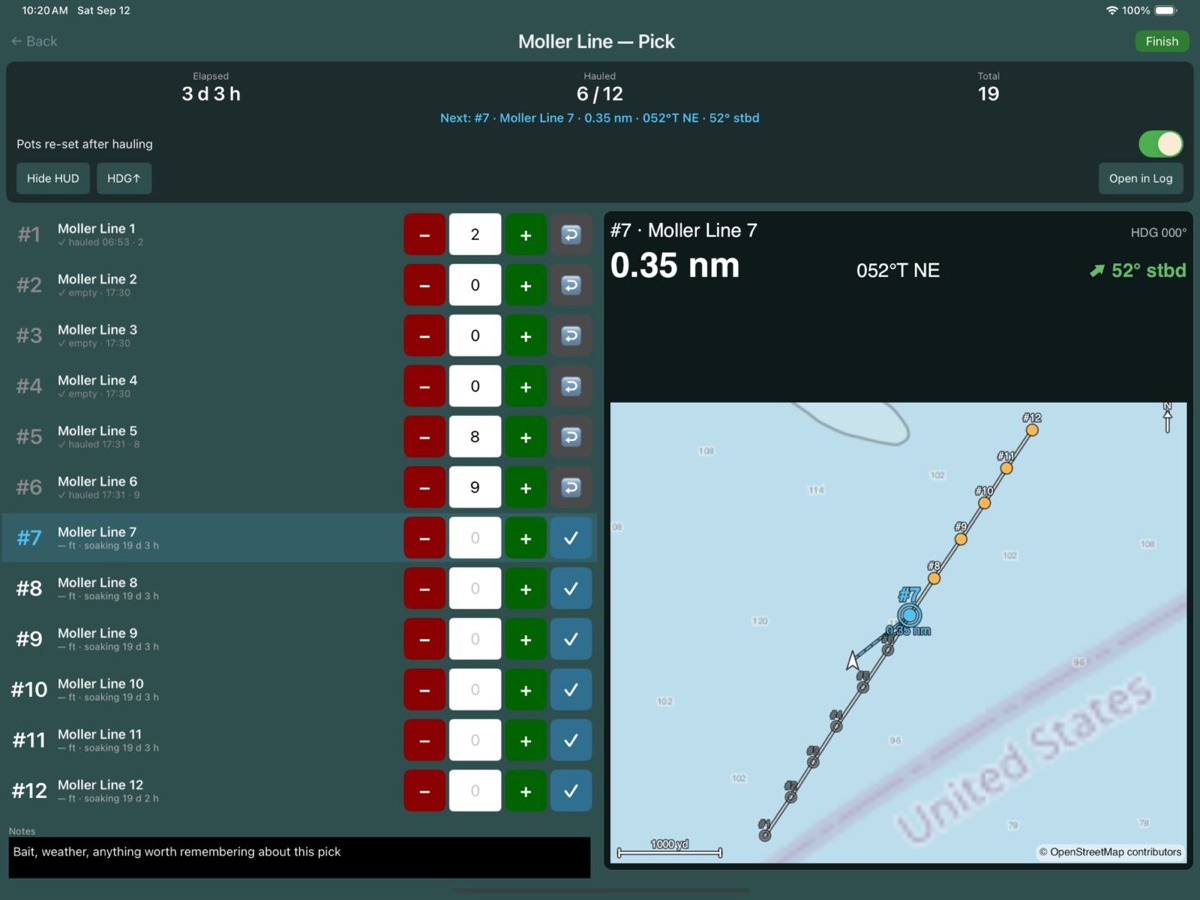
On tablets and the desktop app the pick page has a second panel, controlled by Show Next-Pot HUD in Settings. It draws the string over the live chart – your basemap, downloaded maps, NOAA ENC charts and boundary lines – kept lined up with the string as you steer. Pots are numbered, and turn hollow once hauled. A ring marks the target pot, a line runs from the vessel to it, and the vessel is drawn as an arrow. A north arrow and a scale bar sit in the corners.
Across the top of the panel: the target pot, your heading (marked “held” when the boat is too slow for a steady course, so the last good heading is kept), the range in large type, the bearing, and the turn – “52° stbd” with a green arrow for starboard, red for port.
HDG↑ / N↑ on the pick page switches between heading-up and north-up; HUD North-Up in Settings sets which one a new pick starts with.
On iPad, tapping a count box brings up a compact number keypad instead of the full keyboard, and the existing number is selected so typing replaces it. Phones do not have the panel; the Map button shows the same plot in place of the list.
Finishing and reopening
Tap Finish when the string is aboard or re-set. With pots still pending the app asks “3 pots have not been hauled. Finish the pick anyway? It can be reopened later.” Counts stay editable after finishing, and Reopen puts the pick back in progress.
The string’s Picks tab lists every pick: “In progress · started 06:12” while open, then “Sep 8, 06:12 · 1 h 12 m” once finished, with “18 of 40 hauled · 212 total” underneath.
Picks in the log
A pick is a log entry. It is named after the string – “Moller Line — Pick” – tagged “Pick”, given the crab icon, and holds one “Haul” catch per pot with the pot’s number, depth, soak and count. The species comes from the string’s gear type. A pick of more than 40 pots continues in a second entry, “Moller Line — Pick (part 2)”, and the Picks tab shows “2 parts”; the totals are summed across them.
Because it is a log entry, a pick syncs to your other devices with your logs (Cloud Log Backup), appears in the Logs tab, and can be found with the “Pick” tag chip in Filtering. Open in Log on the pick page takes you straight to it.
On the desktop app
Start a pick from the Picks tab of the Gear Management window (“Count the crab out of each pot as the string is hauled. ◉ in progress, ✓ finished.”), where Start Pick… becomes Resume Pick… while one is open, alongside Open Selected and Delete Selected. Or right-click a pot on the chart and choose Start Pick on “Moller Line”…, or right-click a collapsed string for Start Pick….
The pick opens in its own window, “Moller Line — Pick”, and the chart stays usable behind it. It has the same next-pot line, totals and pot rows, with Pots re-set after hauling, Show HUD and North-up as checkboxes, a notes box, and Finish Pick / Reopen. The plot is the same as on a tablet. The desktop Logs view has no “Pick” filter chip; pick entries still sync and appear in its list.