Groups & Sharing
Introducing Our Group Feature
Welcome to group coordination and communication designed for fleet operations. Plan and execute group activities with these tools:
-
Live Location Sharing – See where your group members are in real-time on the map. Whether you’re fishing the line or navigating a difficult channel, always know where your partners are.
-
Waypoint Sharing – Share waypoints with your group. Whether it’s a rock to avoid, a fishing spot, or a good anchorage, share it and make sure everyone knows.
-
Route Sharing – Share routes directly within the app. Whether it’s a trip down the Kvichak braids or the entrance to Egegik, ensure everyone stays on track.
-
Chat – Stay connected with your group across the bay when a radio just doesn’t cut it. See Fleet Chat for details.
-
Pot String Sharing – Share a string of pots with your group as a read-only copy that updates as you set and move gear. See Sync & Sharing.
Account Required
You must create an account and sign in to use group features. Head to the Tools tab to get started. See Account Setup.
Create Group
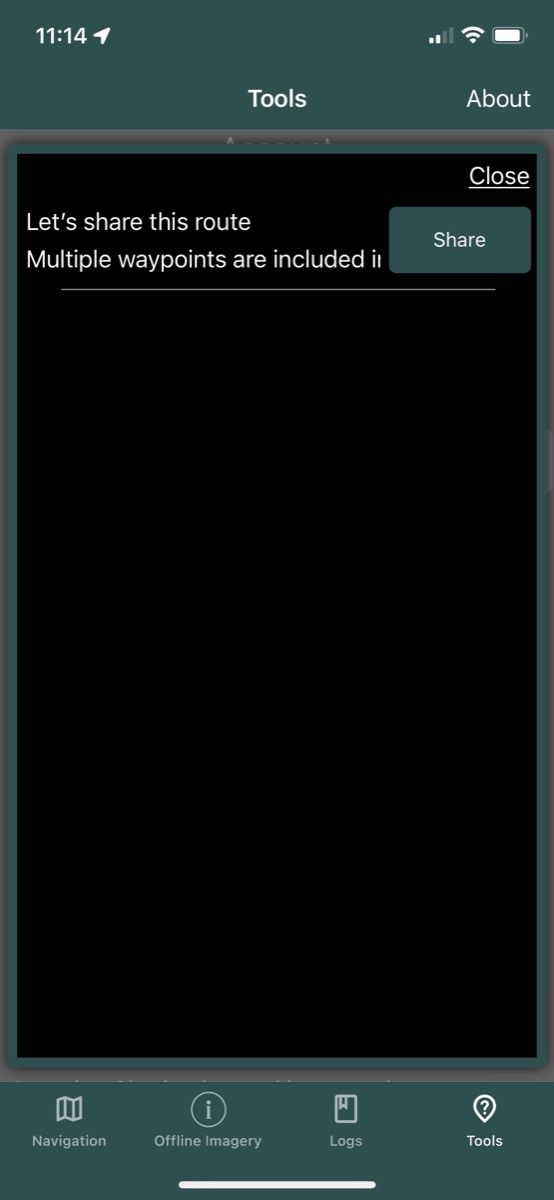
Once your account has been created and you are signed in, select the New Group button to open the group management page.
- Set the group name and description
- Enable or disable viewing shared member locations on the map
- Optionally allow group members to invite new members themselves
- Invite users via their username or email (they must have an account first)
Share Location
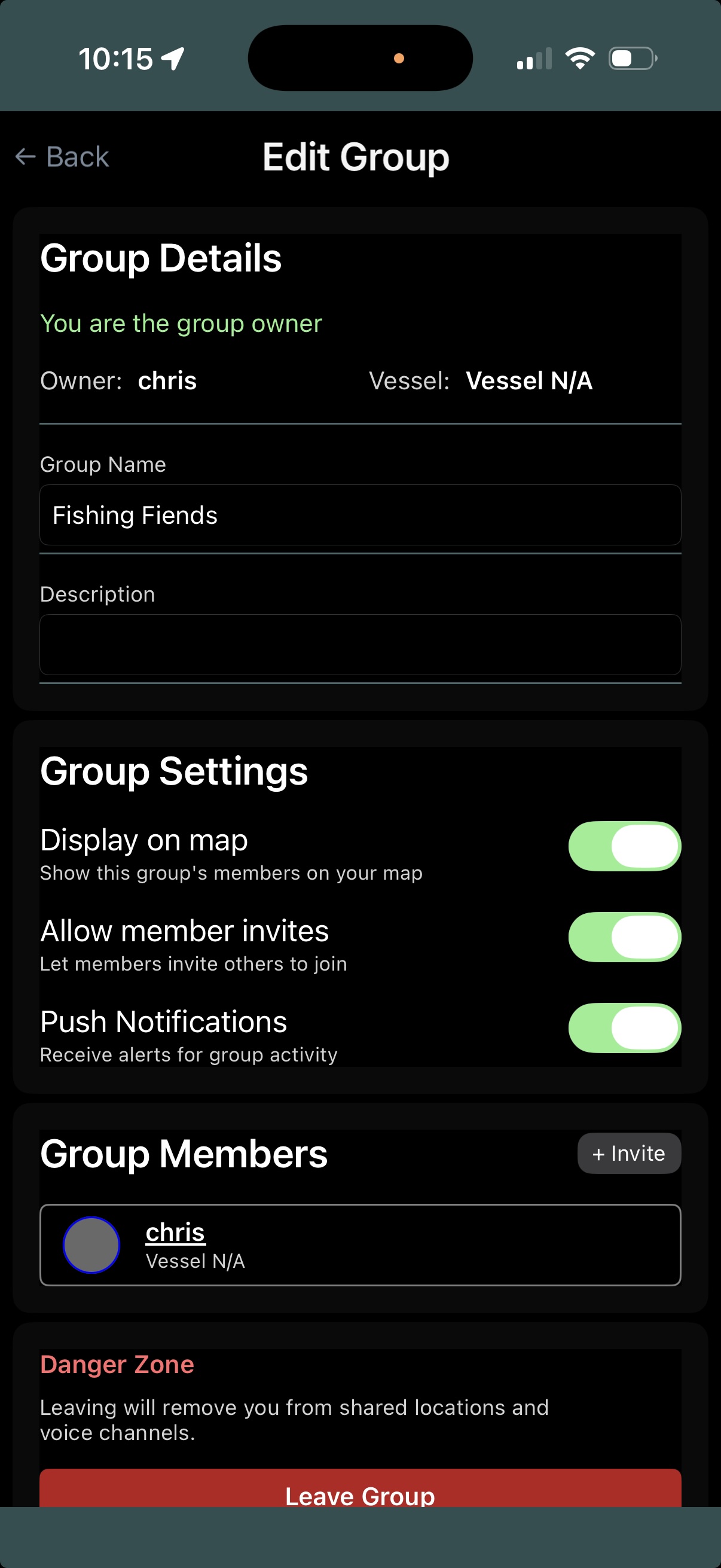
From the group dropdown, each user can toggle sharing their location per group.
Share Waypoints
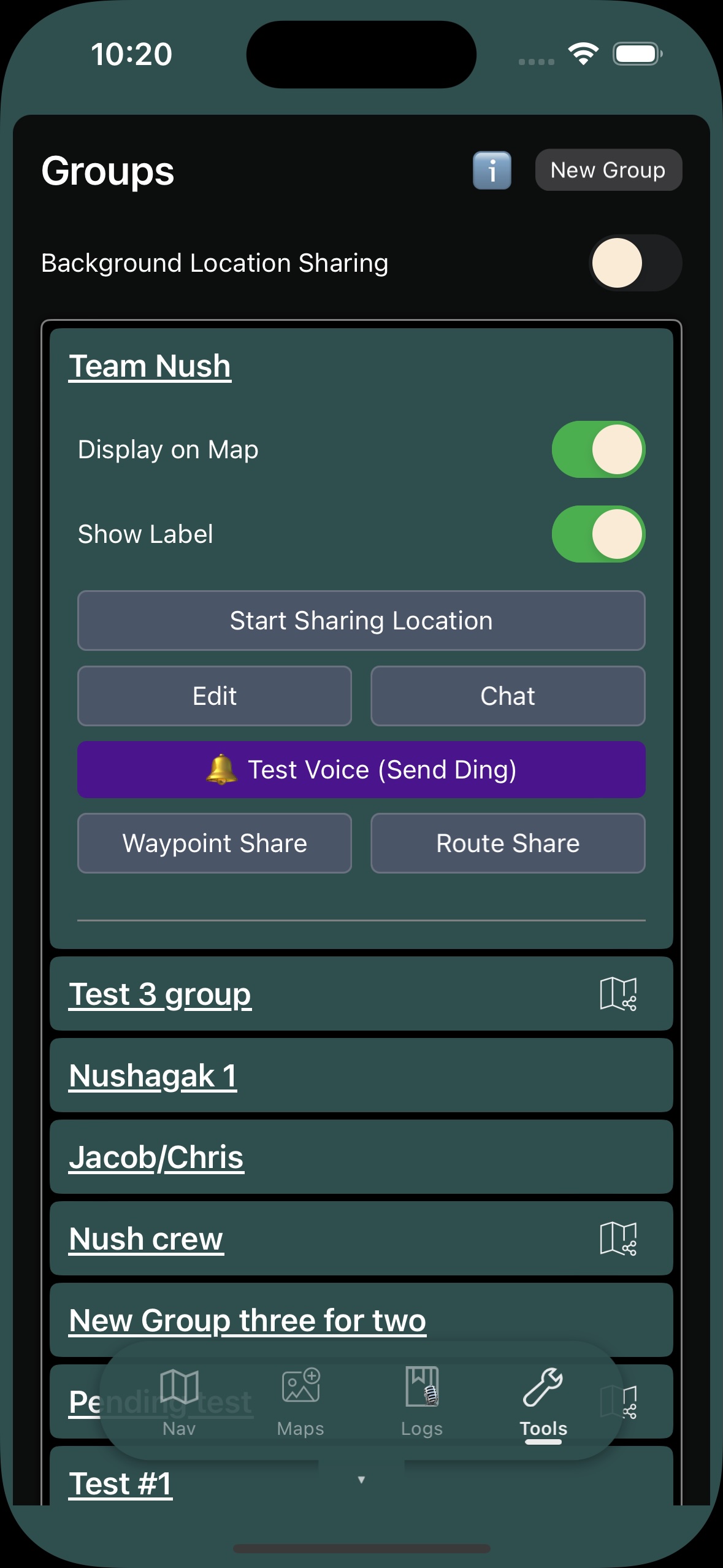
Users can share individual waypoints per group. See Waypoints for creating and managing waypoints.
Share Routes
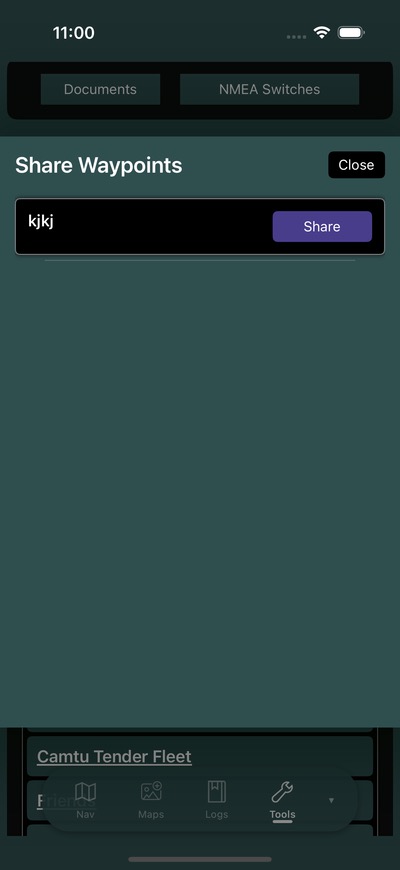
Users can share individual routes per group. The individual waypoints for the route will also be shared. See Routes for creating routes.
Share Pot Strings
Strings of pots are shared from the string itself, not from the group card:
- Open the string (Gear Management > ✏️).
- Tap Share with Group.
- Pick the group.
- The app confirms: “‘Deep Edge’ shared with Team Nush. Members will see your pots and string track.”
To stop, open the string again and tap Manage Sharing, then “Stop sharing: Team Nush”. Members get a read-only copy that keeps up with your changes; what they can and cannot do with it is on Sync & Sharing.
Chat
A group chat system is available for fleet communication. Currently supports text messaging and limited notifications.
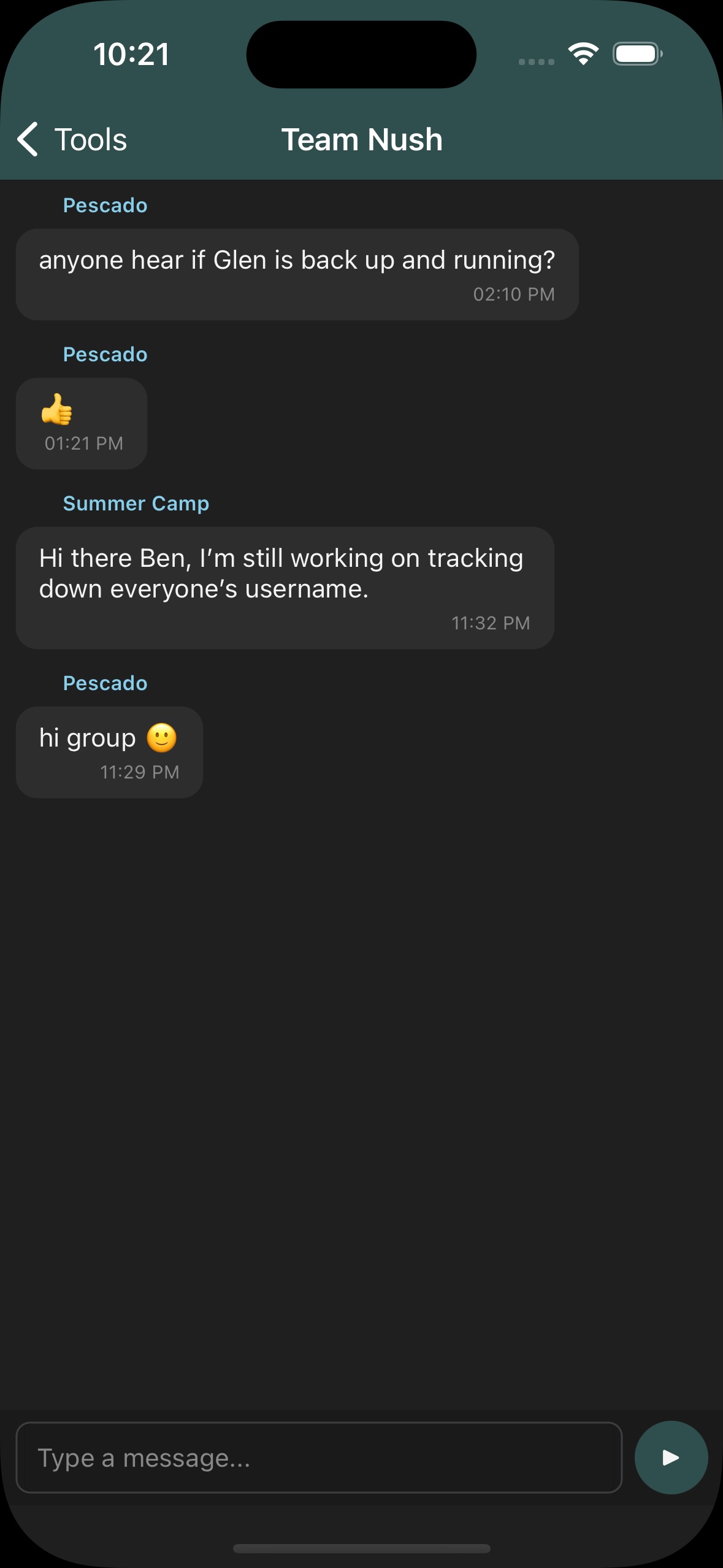
For more details, see Fleet Chat.
Manage Groups
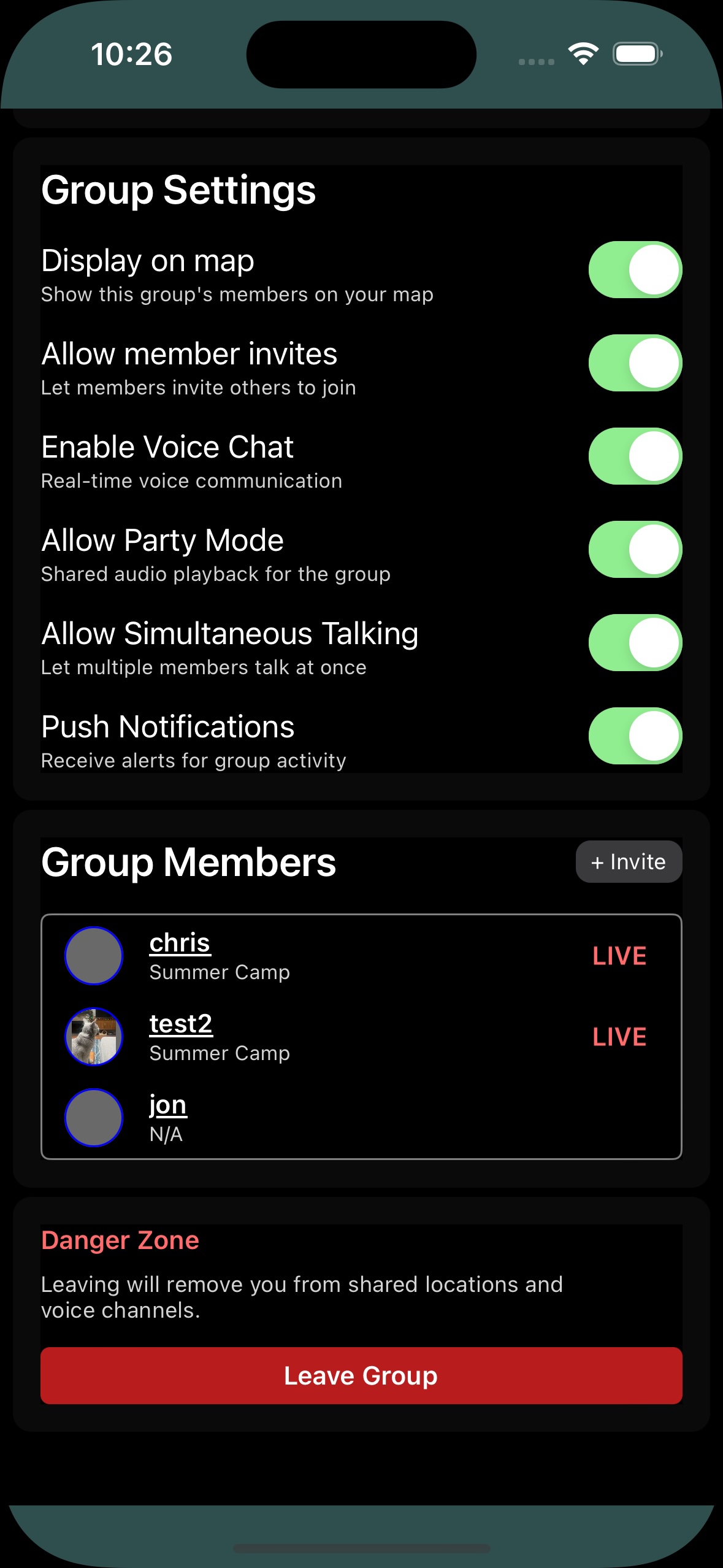
From the Edit group menu the group owner can manage membership, invite new members, and configure sharing settings.
Accepting Invitations
When you receive a group invitation, it will appear below your group list. Tap the invitation to accept and join the group. Once accepted you will see shared locations, waypoints, routes, and pot strings from other group members.