Strings & Pots
Once gear is in the water, this is where you look after it: the Gear Management page, the string page, the pot page, moving a pot on the chart, the set-line tracks, and getting your gear out as a file. Dropping pots and starting strings is on the overview.
The Gear Management page
Open it with ⚙️ > 📋 Manage Gear on the map, with Manage Gear in the map filter menu’s Pot Tracking section, or by tapping a collapsed string’s label on the chart.
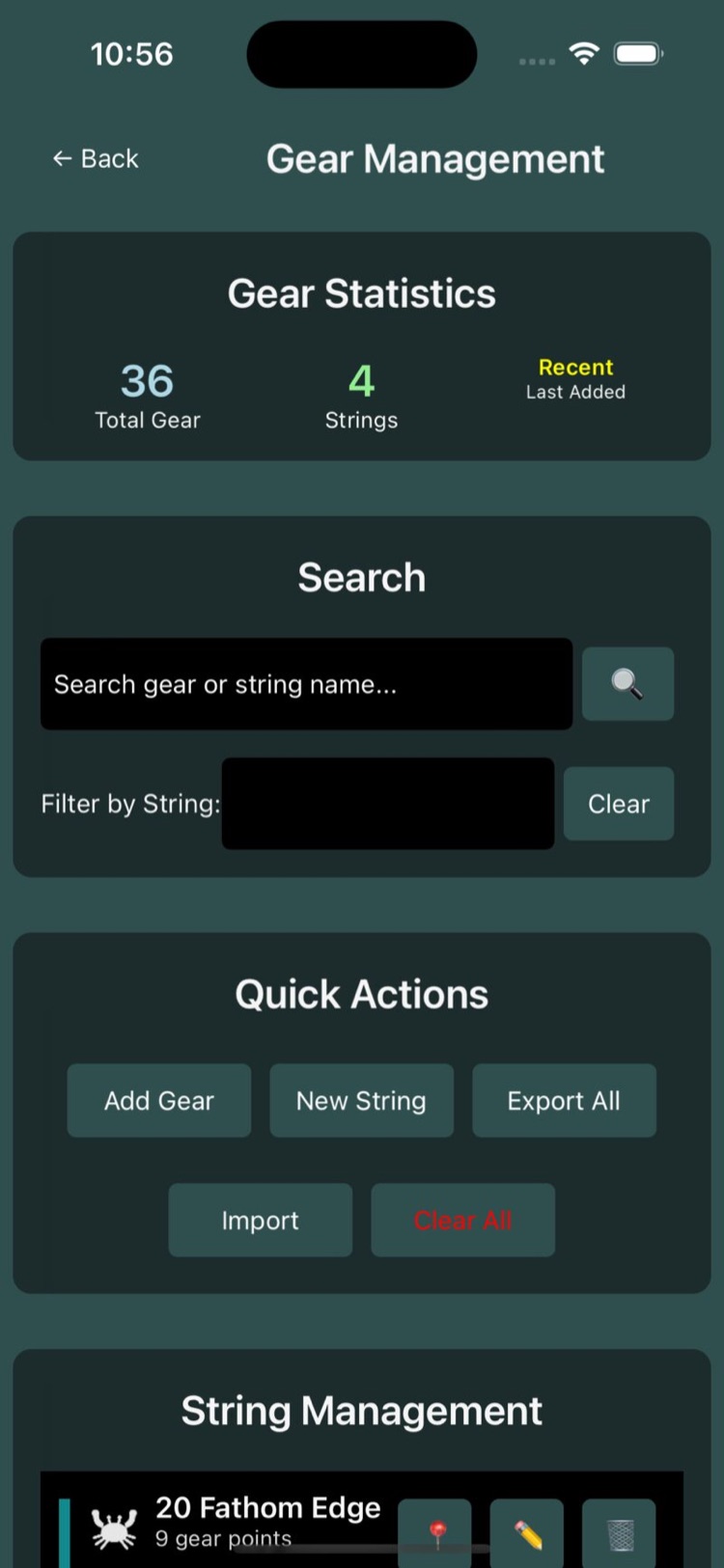
The page is a stack of cards:
| Card | What it holds |
|---|---|
| Gear Statistics | Total Gear, Strings, and Last Added |
| Search | A “Search gear or string name…” box, and a Filter by String: picker with a Clear button |
| Quick Actions | Add Gear, New String, Export All, Import and Clear All (see below) |
| String Management | One row per string: colour bar, icon, name and “9 gear points”. Tap a row to narrow the pot list below to that string |
| Individual Gear Points | Every pot, with its string name and position |
Quick Actions:
- Add Gear creates a pot by hand. It asks for the gear name, the gear type, the string (“Enter string/line name:”), and then the latitude and longitude in degrees and decimal minutes, for example “58° 18.074’ N” and “134° 25.192’ W”. Use it for a pot you did not drop from the boat, or one from another skipper’s numbers.
- New String asks for a name and a gear type.
- Export All and Import – see Export, import, and clearing.
- Clear All deletes every pot, string and string track on the device. It asks twice.
Clear All really is everything
If Cloud Pot & String Backup is on, the deletion syncs to your other devices too. Take a JSON (backup) export first if there is any chance you want the gear back.
Per string (the buttons on each String Management row):
- 📍 centres the chart on the whole string.
- ✏️ opens the string page.
- 🗑️ deletes the string. You choose between “Delete String Only (move gear to ‘Default’)” and “Delete String AND All Gear Points”. A string that a group member shared with you offers Hide instead – see Sync & Sharing.
Per pot (the Individual Gear Points list): 📍 centres the chart on the pot, and ✏️ or a tap on the row opens the pot page.
String details
Open a string with ✏️ on its row, with View String Details on any of its pots, or by tapping the string’s collapsed line on the chart.
| Field | What it does |
|---|---|
| Name | The string’s name – what you see on the chart label, the pick page and in the log |
| Colour (applies to every pot and track) | One of twelve: Tomato Red, Sea Green, Dodger Blue, Orange, Blue Violet, Deep Pink, Dark Turquoise, Gold, Lime Green, Red Orange, Dark Gray, Crimson. Changing it recolours every pot and track in the string |
| Gear type | Crab Pot, Shrimp Pot, Cod Pot, Lobster Trap, Longline, Mixed Gear or Other. New pots inherit it, and it sets the species written on the string’s picks |
| Icon | Tap Change… to pick the icon new pots get. The app then asks “Use this icon for…” with the choices “All 12 pot(s) in this string” or “New pots only” |
| Notes and Tags | Free text – grounds, bait, who set it |
The icon picker offers six gear silhouettes – Crab, Pot, Lobster, Shrimp, Hook and Buoy – and then every waypoint icon. Silhouettes draw in the string’s colour; the other icons draw as artwork. A pot with no icon of its own uses its gear type’s default: Crab for crab pots, Shrimp for shrimp pots, Lobster for lobster traps, Hook for longline, and Pot for everything else.
Below the fields are three tabs:
- Pots – every pot in set order. Tap one to open it.
- Track Lines – the recorded set lines. See String tracks.
- Picks – every haul of this string, and the Start Pick button. See Pick Mode.
At the bottom: Share with Group (or Manage Sharing once shared – see Sync & Sharing) and Center on Map.
Pot details
Open a pot by double-tapping its marker or callout on the chart, from ✏️ or a tap on its row in Gear Management, from the string page’s Pots tab, or by tapping its name on a pick row.
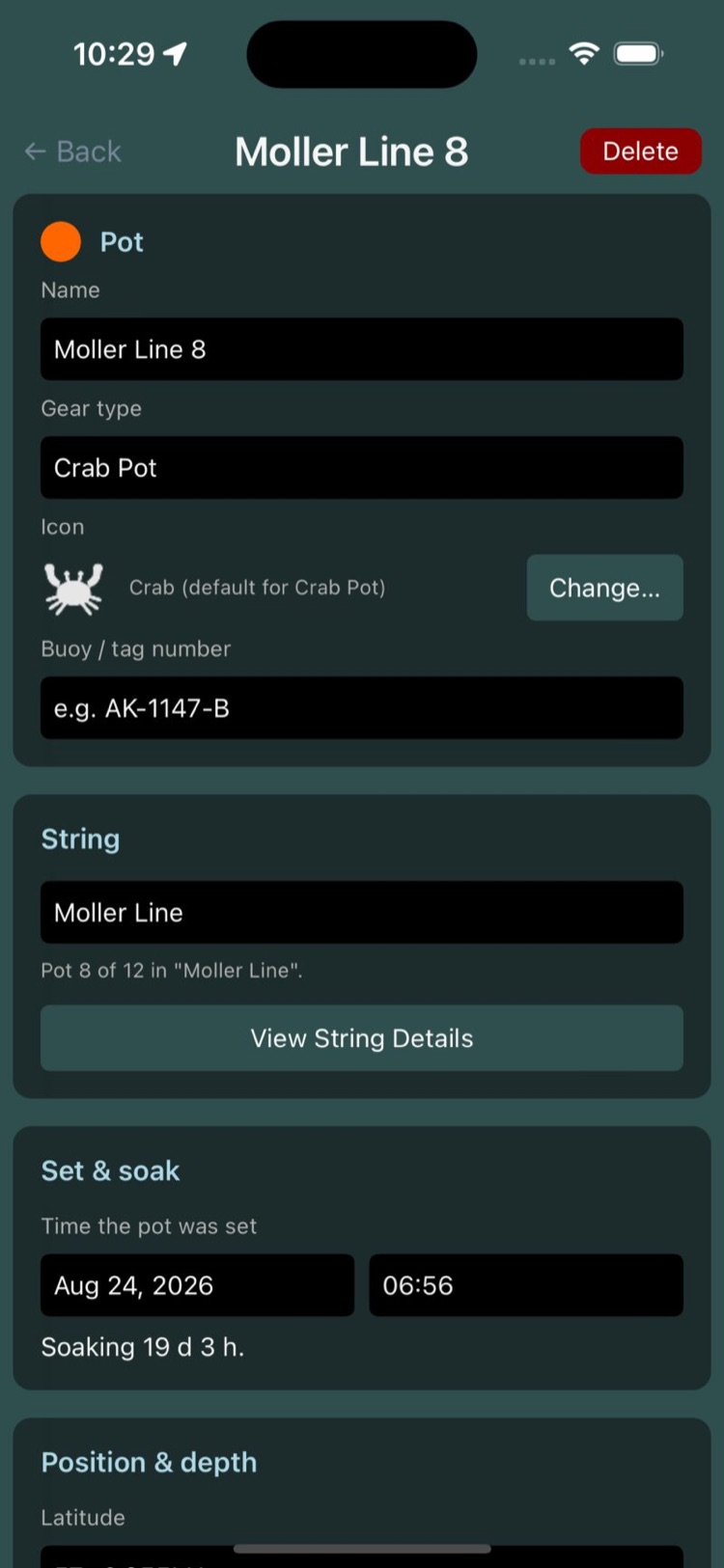
The page header shows the pot’s name, with Delete on the right. The cards:
| Card | What it holds |
|---|---|
| Pot | Name, Gear type, Icon (with Change…), and Buoy / tag number (“e.g. AK-1147-B”) |
| String | A picker to move the pot to another string, including “➕ Create New String…”; a line such as “Pot 8 of 12 in “Moller Line”.”; and View String Details |
| Set & soak | Time the pot was set as a date and a time, and the running soak: “Soaking 1 h 12 m.” A set time ahead of now reads “Set time is in the future.” |
| Position & depth | Latitude and Longitude in degrees and decimal minutes (“58° 18.074’ N”); the distance and bearing from the vessel; Edit on Chart; Depth (feet), with a Use sounder button whenever a live depth is coming in; and Center on Map |
| Notes | “Bait, condition, anything worth remembering” |
| Details | Tags, when the pot was last edited, and its sync state: “Synced Sep 8, 06:12”, “Not yet synced to the cloud.” or “Shared with you by a group member.” |
Changes are saved when you tap Back. Moving a pot to another string recolours it to match.
No haul button here
Hauling a pot, counting the catch and restarting its soak clock all happen in Pick Mode, where every pot on the string is in front of you at once.
Moving a pot: Edit on Chart
Edit on Chart opens the pot on a chart with the rest of its string drawn for reference. Drag the pot where it belongs, or tap the chart to place it there.
- The other pots in the string are locked. Tap Move others to unlock them and shift several at once; Lock others locks them again.
- Reset puts every pot back where it started.
- Save shows how many pots have moved, for example Save (3), and is greyed out until something has.
- Leaving with unsaved moves asks “Leave without saving the moved pots?”.
Saved moves upload straight away, so your other devices and anyone you share the string with see the corrected positions within seconds. A pot on a string someone shared with you cannot be moved.
How pots are numbered
Pot numbers are worked out the same way on every device, so the phone and the desktop always agree on which pot is #7. A string with an explicit order keeps it. Otherwise pots are numbered by set time, and older pots that predate set times fall back to the order they were added.
Starting a pick freezes the string’s numbers from 1 to n for good. Hauling resets set times, and without the freeze the numbers would shuffle mid-pick. See Pick Mode.
String tracks (set lines)
A string’s track is the path the boat took while the string went in. It is drawn in the string’s colour whenever Show String Track Lines is on.
Recording a track
- Recording starts on its own when you drop the first pot of a new string, as long as Auto-Track New Strings is on (it is by default).
- Start and stop it by hand from ⚙️ > ▶ Start Tracking and ⏸ Stop Tracking.
- ⚙️ > ➕ New Track starts another run on the same string. Each new run takes the next line style – Dash, then Dot, DashDot, Solid – so two runs can be told apart on the chart.
- Recording stops by itself after Auto-Stop Tracking (minutes) (60 by default) with the boat not moving.
- Background Pot Tracking keeps recording while the app is in the background. Off by default.
Two boats, one string
Two devices on the same account can record on the same string at the same time. Both runs are kept.
The Track Lines tab
The string page’s Track Lines tab lists every run: a 👁 or 🚫 for whether it is drawn on the chart, its name, its line style (or “recording”), how many pots were set on it, the date, and a 📋 if it is linked to a log entry. Tap a run to open it.
The Track Line page
| Field | What it does |
|---|---|
| Name | The run’s name |
| Colour | The string’s colour. Changing it here asks first: “Colour is shared by the whole string. Change every pot and track in “Moller Line” to Gold?” |
| Line style | Solid, Dash, Dot or DashDot – this one is per run |
| Show on chart | “Draw this track line on the map.” |
Under the fields: whether the run is still recording, its point and pot counts, when it started and ended, and whether it is linked to a log entry. Center on Map zooms the chart to it. Link to Log Entry attaches it to one of your recent log entries. Delete removes the run only – “The pots it was recorded with are not affected.”
String tracks are never stitched into a route by Convert a Track to a Route; that works on the vessel track.
The older Manage String Tracking sheet
The map filter menu’s Manage String Tracking button is the earlier way of doing this. It asks “Select String to Manage” and then offers Start Tracking / Stop Tracking, View Track Details, Update Track Color (an older list of eight colours – the string page’s twelve are the ones to use), Export Track, Share String with Group and Manage Sharing. Everything on it except Export Track is on the string page.
Export, import, and clearing
- Export All on the Gear Management page offers “GPX (for chartplotter)”, which writes every pot as a waypoint and every string track as a track, or “JSON (backup)”, which is pots only.
- Export Track on the Manage String Tracking sheet shares one string’s track as GeoJSON.
- Clear All is described above.
Import never creates pots
GPX files import into Bristol Maps as plain waypoints, never as gear – that is what the Import button tells you. To get pots onto another device, turn on Cloud Pot & String Backup there and sign in; to show a string to another boat, share it with your group. See Sync & Sharing.
On the desktop app
Data > Pots & Gear… or Manage Gear in the map sidebar opens the Gear Management window. The left column lists your strings with + New, Delete (you type the string’s name to confirm) and Export All…. The right column, String Details, has Name (read-only on desktop – rename on the phone or tablet and it syncs back), Color (the same twelve), Gear type, Icon for new pots with Change… and the same “all pots or new pots only” question, Notes, Tags, and Group Sharing. Under those are the Pots, Track Lines and Picks tabs and an Export String to GPX button.
On the chart, right-click a pot for Pot Details…, Rename Pot, Move Pot (then click the new spot) and Delete Pot; right-click a collapsed string for Open String Details. Double-click a pot to open the Pot Details window, which has the same fields as the mobile page. Its Edit on Chart opens the Edit Pot Position window with Move others, Reset and Save. Track runs open in the Track Line window: Name, Colour, Line style, Show this track line on the chart and Center on Map.
Not on desktop: renaming a string, Clear All, Import, and the search, filter and statistics cards.