Groups & Sharing
Introducing Our Group Feature
Welcome to group coordination and communication designed for fleet operations. Plan and execute group activities with these tools:
-
Live Location Sharing -- See where your group members are in real-time on the map. Whether you're fishing the line or navigating a difficult channel, always know where your partners are.
-
Waypoint Sharing -- Share waypoints with your group. Whether it's a rock to avoid, a fishing spot, or a good anchorage, share it and make sure everyone knows.
-
Route Sharing -- Share routes directly within the app. Whether it's a trip down the Kvichak braids or the entrance to Egegik, ensure everyone stays on track.
-
Chat -- Stay connected with your group across the bay when a radio just doesn't cut it. See Fleet Chat for details.
Account Required
You must create an account and sign in to use group features. Head to the Tools tab to get started. See Account Setup.
Create Group
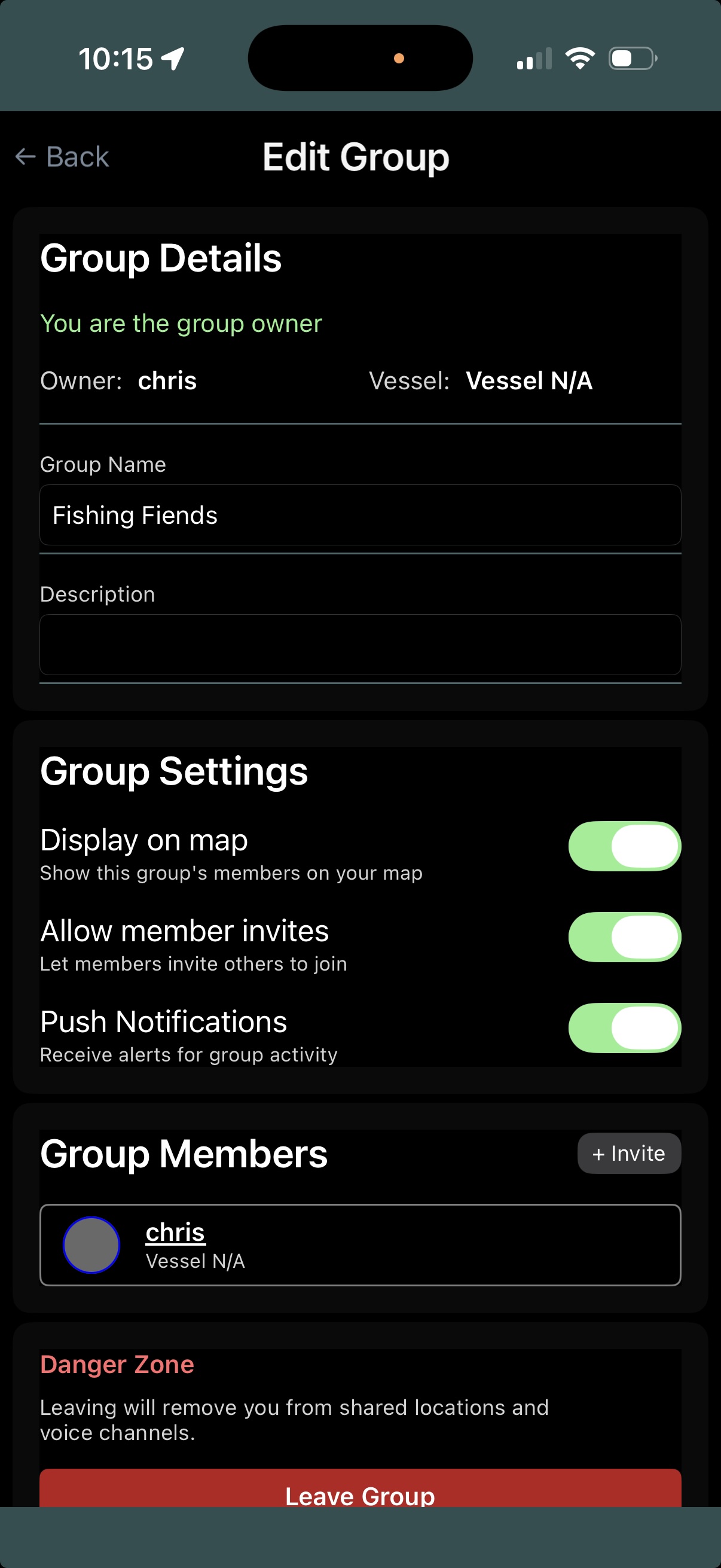
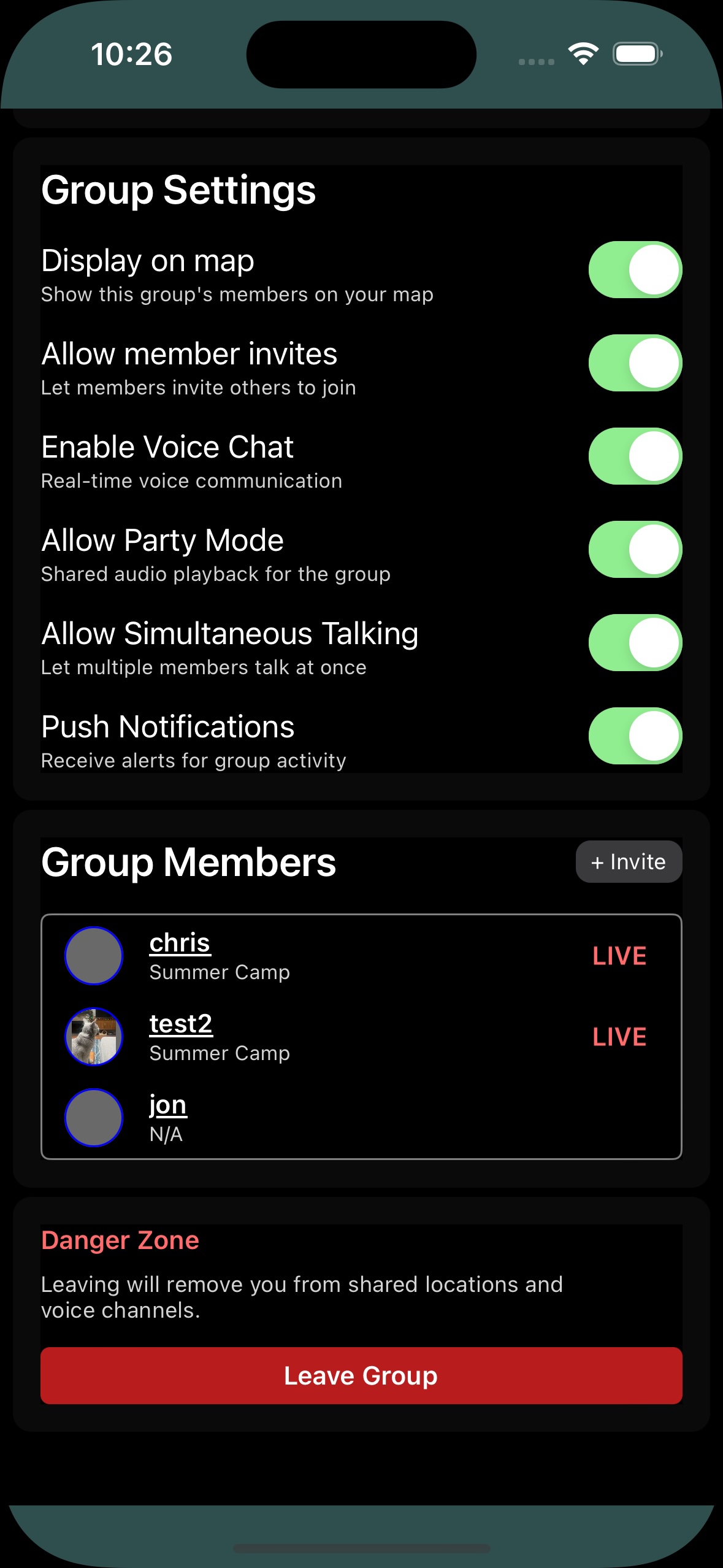
Once your account has been created and you are signed in, select the New Group button to open the group management page.
- Set the group name and description
- Enable or disable viewing shared member locations on the map
- Optionally allow group members to invite new members themselves
- Invite users via their username or email (they must have an account first)
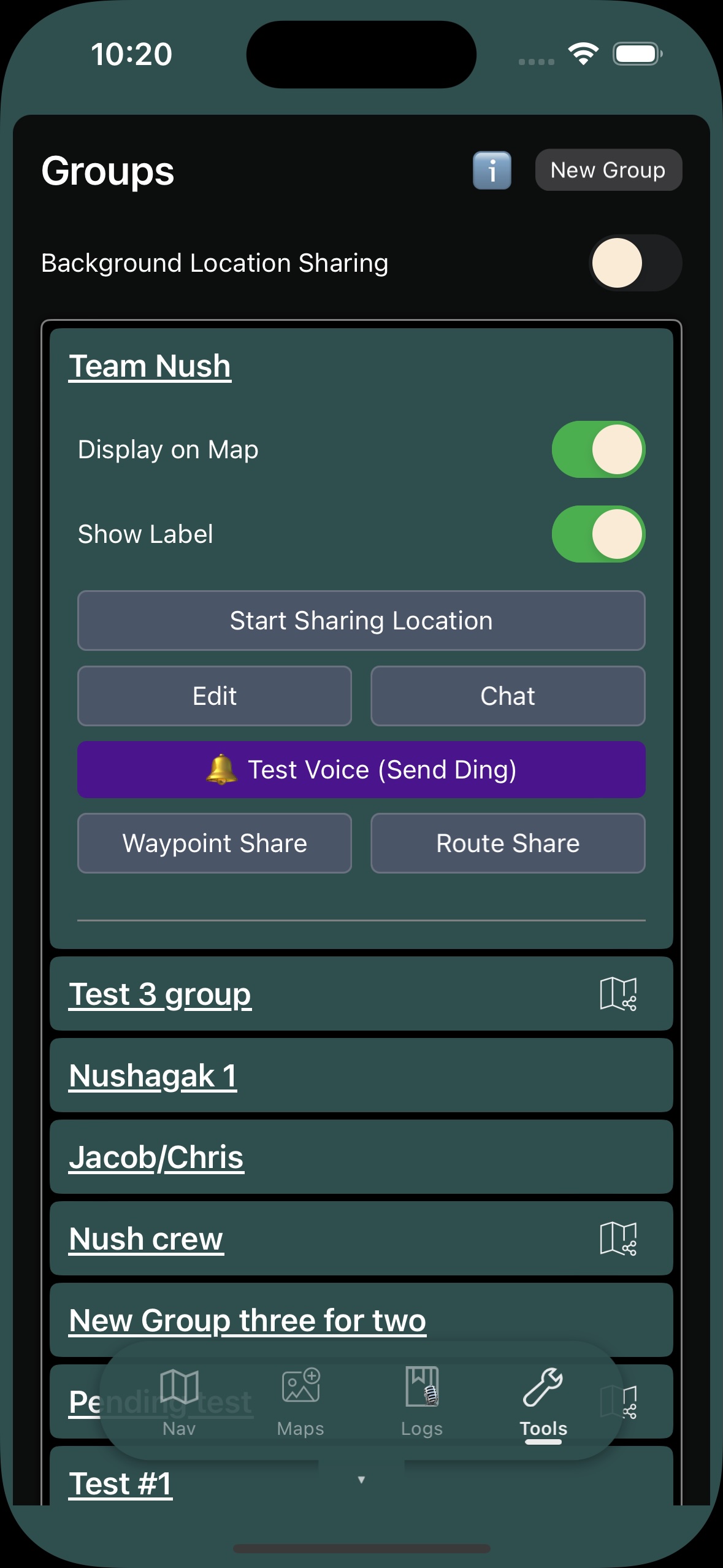
Share Location
From the group dropdown, each user can toggle sharing their location per group.
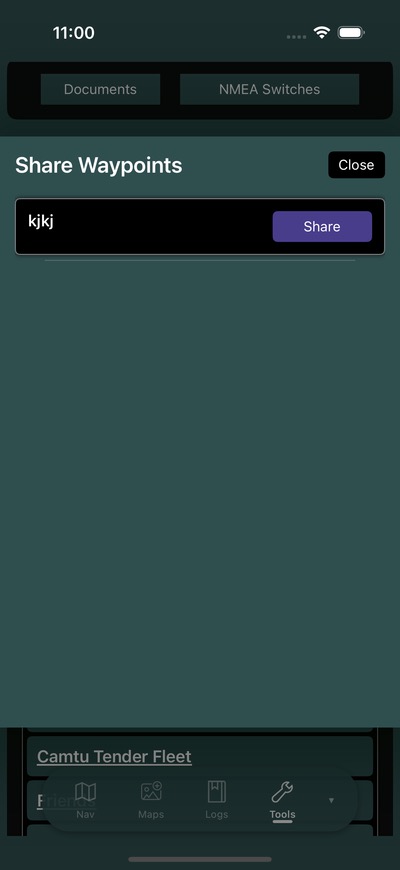
Share Waypoints
Users can share individual waypoints per group. See Waypoints for creating and managing waypoints.
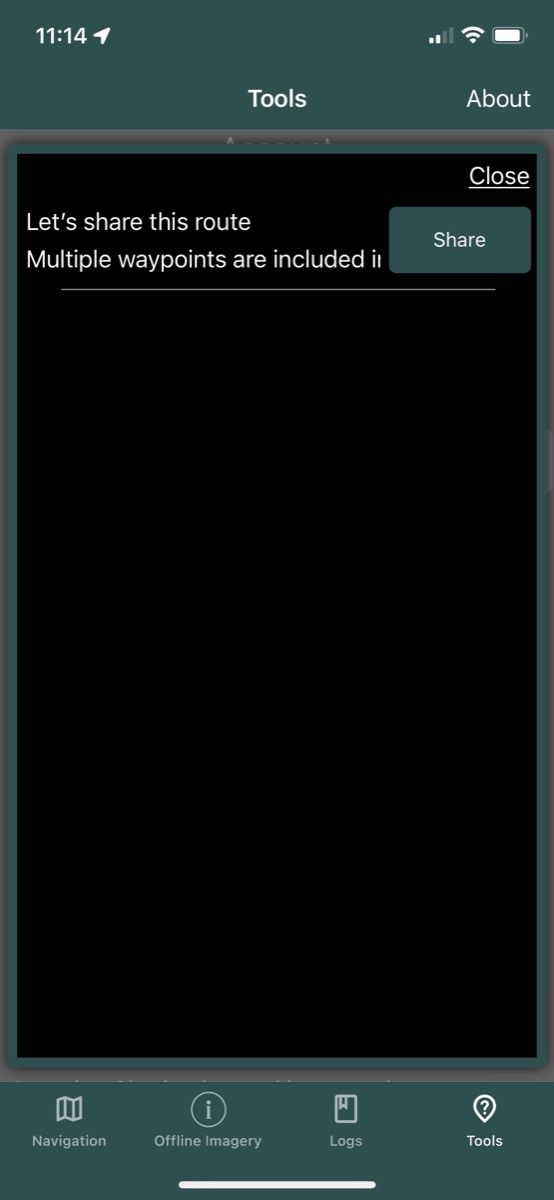
Share Routes
Users can share individual routes per group. The individual waypoints for the route will also be shared. See Routes for creating routes.
Chat
A group chat system is available for fleet communication. Currently supports text messaging and limited notifications.
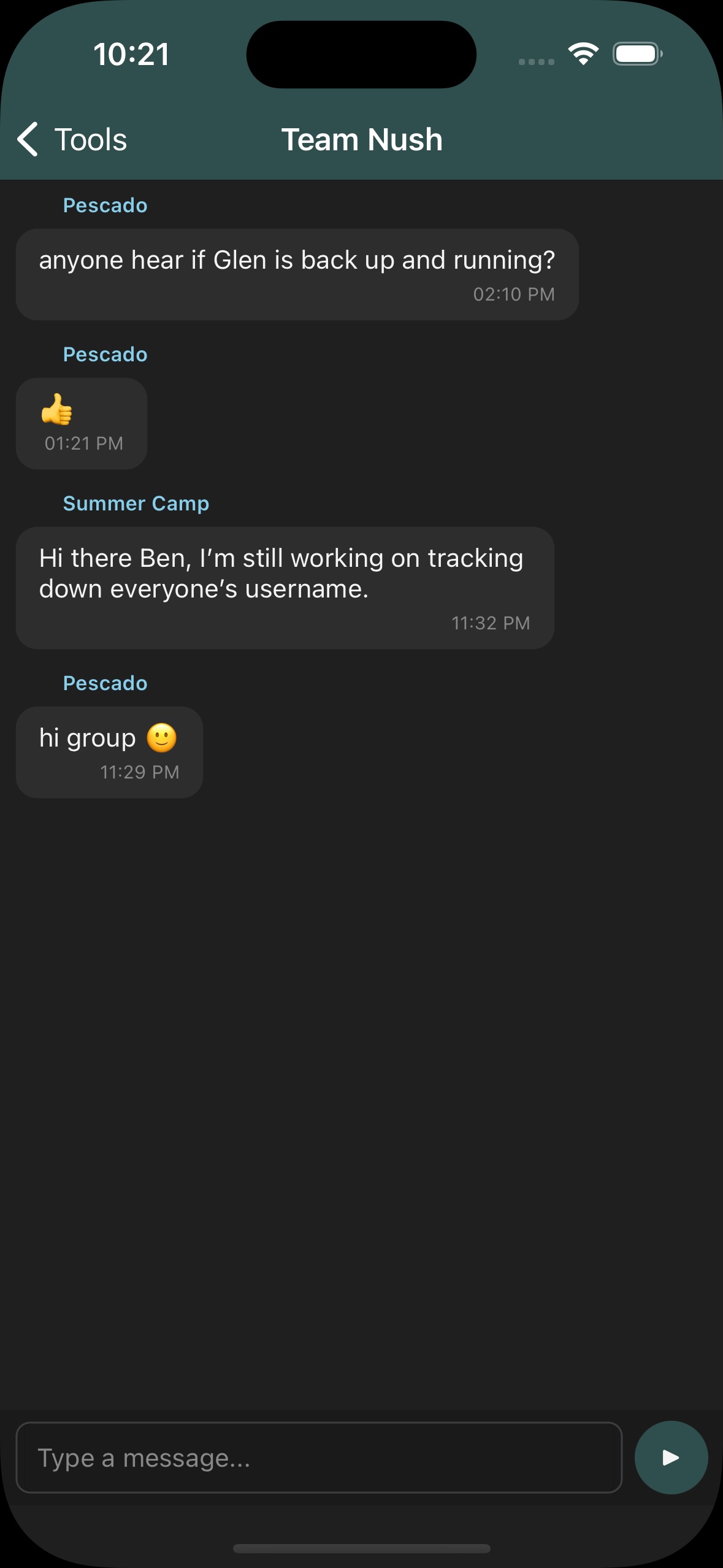
For more details, see Fleet Chat.
Manage Groups
From the Edit group menu the group owner can manage membership, invite new members, and configure sharing settings.
Accepting Invitations
When you receive a group invitation, it will appear below your group list. Tap the invitation to accept and join the group. Once accepted you will see shared locations, waypoints, and routes from other group members.