Map Overview
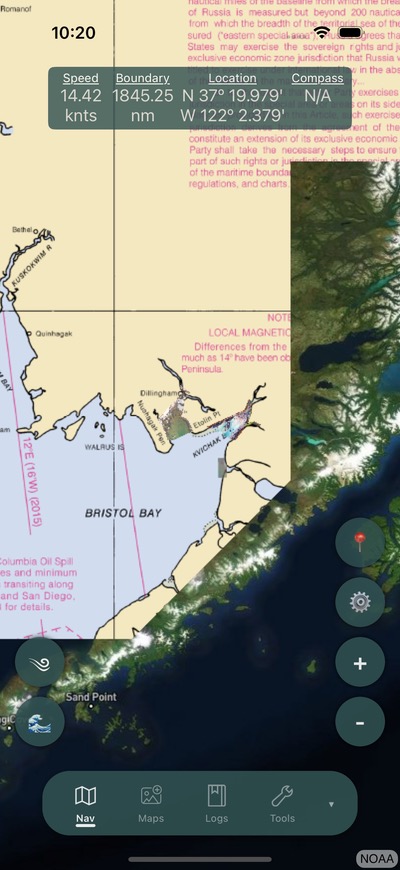
The Navigation page is the primary screen in Bristol Maps. It displays a full-screen map with real-time data overlays, navigation tools, and access to weather, tides, and more.
Screen Layout
Navigation Banner
The banner at the top of the screen displays real-time navigation data in a scrollable bar:
| Display | Description |
|---|---|
| Speed | Current speed over ground in knots |
| Depth | Water depth from NMEA depth sounder (when connected) |
| Boundary | Distance to the nearest loaded boundary line |
| Location | Current latitude and longitude coordinates |
| Compass | Current heading/bearing |
| Temperature | Water temperature (when NMEA sensor connected) |
Tip
The navigation banner opacity can be adjusted in Settings to avoid obscuring the map.
Map Controls
Right side buttons:
- Zoom In/Out -- Adjust map zoom level
- Center on Me -- Re-center the map on your current position
- Settings -- Open the navigation settings flyout menu
Left side buttons:
- Weather -- Quick access to weather at your location
- Tides -- Toggle the tide overlay chart
- Gear -- Access pot/gear tracking tools (when enabled)
- Temperature -- Display water temperature (when NMEA connected)
Map Interaction
- Pinch to zoom -- Zoom in and out on the map
- Double tap -- Opens a context menu with options:
- Create Waypoint -- Save the tapped location as a waypoint
- Weather -- Get weather for that location
- Tides -- View nearby tide stations
- New Log Entry -- Create a log entry at that location
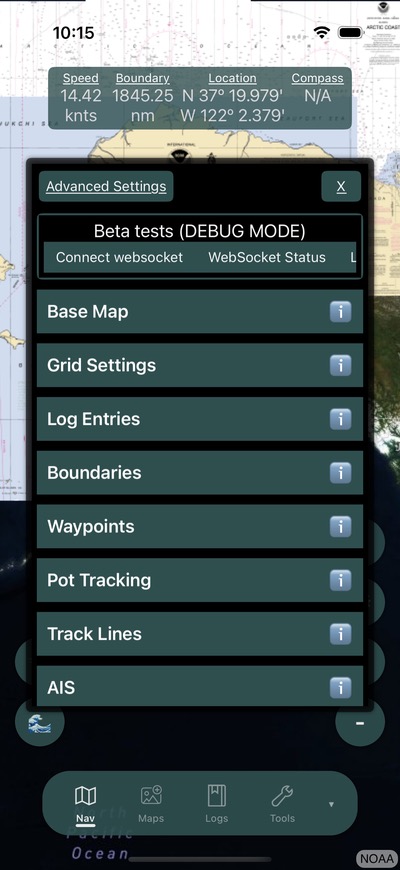
Navigation Settings Menu
The settings flyout provides access to map overlays and configurations:
- Base map selection -- Choose between Satellite, NOAA, Alaska High Res, or Streets. See Maps.
- Grid overlay -- Enable and configure district grid display
- Boundary lines -- Load and display fishing district boundaries
- Log overlays -- Toggle display of log entries on the map
- Waypoints & Routes -- Toggle waypoint and route display
- Tide stations -- View and select nearby tide stations
- Boundary alarm -- Enable proximity alerts
Heading Line
A heading line extends from your position in the direction of travel. This can be configured in Settings:
- Display mode -- Show as distance or time-based projection
- Color -- Customize the heading line color
- Length -- Adjust projection distance
Follow Me Mode
Tap the Center on Me button to lock the map to your current position. The map will automatically pan to follow your movement. Tap again or manually pan the map to disable.
Map Layers
Multiple layers can be displayed simultaneously on the map:
- Base map -- The online background layer (Satellite, NOAA, etc.)
- Offline imagery -- Downloaded MBTiles layers with configurable priority and transparency
- Boundaries -- Fishing district lines
- Grid -- District grid overlay
- Waypoints -- Saved location markers
- Routes -- Multi-waypoint paths
- Track lines -- Recorded position history
- Gear points -- Pot/gear locations
- AIS targets -- Vessel positions from AIS data
- Fleet locations -- Shared positions from group members
- Log entries -- Saved fishing logs on the map
Related
- Settings Reference for all configurable options
- Downloading Maps for offline imagery
- Groups & Sharing for fleet location features